
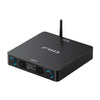
FiiO BR15 R2R Setup: Bluetooth, USB, TV & Stereo
, by EMiUZEK Editorial Team, 5 min reading time
Connect the FiiO BR15 R2R to a phone, TV, computer, amplifier, or powered speakers. This setup guide explains Bluetooth pairing, RCA/XLR, optical/coaxial, and common fixes.
The FiiO BR15 R2R can add Bluetooth, USB and optical/coaxial digital sources to an existing stereo. For the simplest phone setup, connect the BR15’s RCA line output to an available AUX, CD or Line input on an integrated amplifier, select Bluetooth on the BR15, pair your phone, and play music. Use XLR only with compatible balanced equipment; use the digital outputs only when the next device has its own DAC.

The BR15 can receive audio over Bluetooth, USB and optical or coaxial digital input. It can send audio out through analog RCA, balanced XLR, optical or coaxial connections. Think of the system as a chain: phone, TV or computer → BR15 input → one selected BR15 output → amplifier, powered speakers or an external DAC.
Do not connect an analog output to a phono input. Use a line-level input marked AUX, CD, Line or similar. If you are connecting powered speakers, check whether they accept RCA or balanced XLR and set their volume low before powering up. For a separate DAC, use optical or coaxial digital output instead of connecting analog line output to another DAC.
For later listening, the BR15 may reconnect to a previously paired device. If several phones have been used, disconnect the one you do not want before pairing another. Bluetooth codec labels describe the wireless link format; the phone and BR15 choose a mutually supported option. They do not guarantee that a streaming service provides lossless audio or that a codec change will be audible in every room.
For a typical receiver or integrated amplifier, run a stereo RCA cable from the BR15’s analog output to AUX, CD or another line input. Select that same input on the amplifier. Keep the BR15 and amplifier volumes low during the first test, then increase them carefully. If the BR15 has a fixed/variable output or volume setting selected, be sure you know which device is controlling level before turning anything up.
For active speakers or studio monitors with balanced inputs, use the BR15’s XLR outputs and set speaker gain conservatively. XLR is the right tool when your speakers support balanced analog and the cable run benefits from it; it does not automatically make a short desktop connection sound better than RCA.
For optical or coaxial connection to an external DAC, select digital output on the downstream device and choose the corresponding BR15 output. The receiving DAC performs the digital-to-analog conversion in that arrangement. Confirm that the source format is supported by both devices. If the TV is the source, select PCM stereo in the TV’s digital-audio menu when a multichannel bitstream causes silence or unstable decoding.
Connect a computer to the BR15’s USB input with a data-capable cable, select USB on the BR15, and choose “FiiO BR15 R2R” as the computer’s audio output. Then connect the BR15 to an amplifier or speakers using the analog or digital output that matches the rest of the chain. On a phone or tablet, USB audio may require a compatible USB-C/OTG adapter. FiiO notes that mobile USB audio behavior can vary by device, so test the cable and source before assuming the BR15 is faulty.
When using an optical or coaxial input from a TV or CD transport, change the BR15 input to the matching source. The coaxial socket can be shared by input and output, so check its selected direction in the menu. If there is no sound, verify the selected input and output before changing cables.
If the phone cannot find the BR15, switch the BR15 to another input and back to Bluetooth, then search again. FiiO’s support instructions also suggest reconnecting power and retrying; a factory reset is a later step because it clears settings. If the phone sees the BR15 but music is silent, check the amplifier input, BR15 output path, phone media volume, and whether the amplifier is muted.
If Bluetooth works but an optical or coaxial source does not, make sure the BR15 is set to the matching input, the cable is seated, and the source device is sending a supported signal. For a TV, PCM stereo is a useful diagnostic setting. If only one channel plays, reseat both RCA plugs and test another cable or line input.
For level problems, confirm whether the BR15 output is fixed or variable and which control should set listening volume. Start with the amplifier low, then raise the source gradually. This prevents an unexpectedly loud signal when switching from Bluetooth to USB or a digital input.
The BR15 R2R is useful when you want one desktop box for wireless playback and several wired digital sources, or when your system benefits from XLR output. If all you need is Bluetooth into a stereo receiver’s RCA input, the less expensive FiiO BR13 may be enough. If you want the BR15’s R2R design and extra routing, check its current US listing and confirm that the in-stock finish is the one you want.
For the upgrade decision, read our BR15 R2R vs BR13 comparison and fixed versus variable DAC output guide. Check FiiO’s official Bluetooth receiver instructions if the menu sequence changes after a firmware update.
Start with the connection you need, not the feature list. Bluetooth-to-RCA is the quick route for an old stereo; XLR fits balanced monitors; optical or coaxial keeps conversion in an external DAC. Match the input mode to the source, select a line-level input on the amplifier, and bring the volume up slowly.